Building NetPulse: A Real-Time Internet Speed Meter & Data Tracker
NetPulse is a battery-friendly Kotlin Android app for real-time speed and data tracking. It features a live status bar meter, 60-day logs, and dark mode.
 Nilay Naha
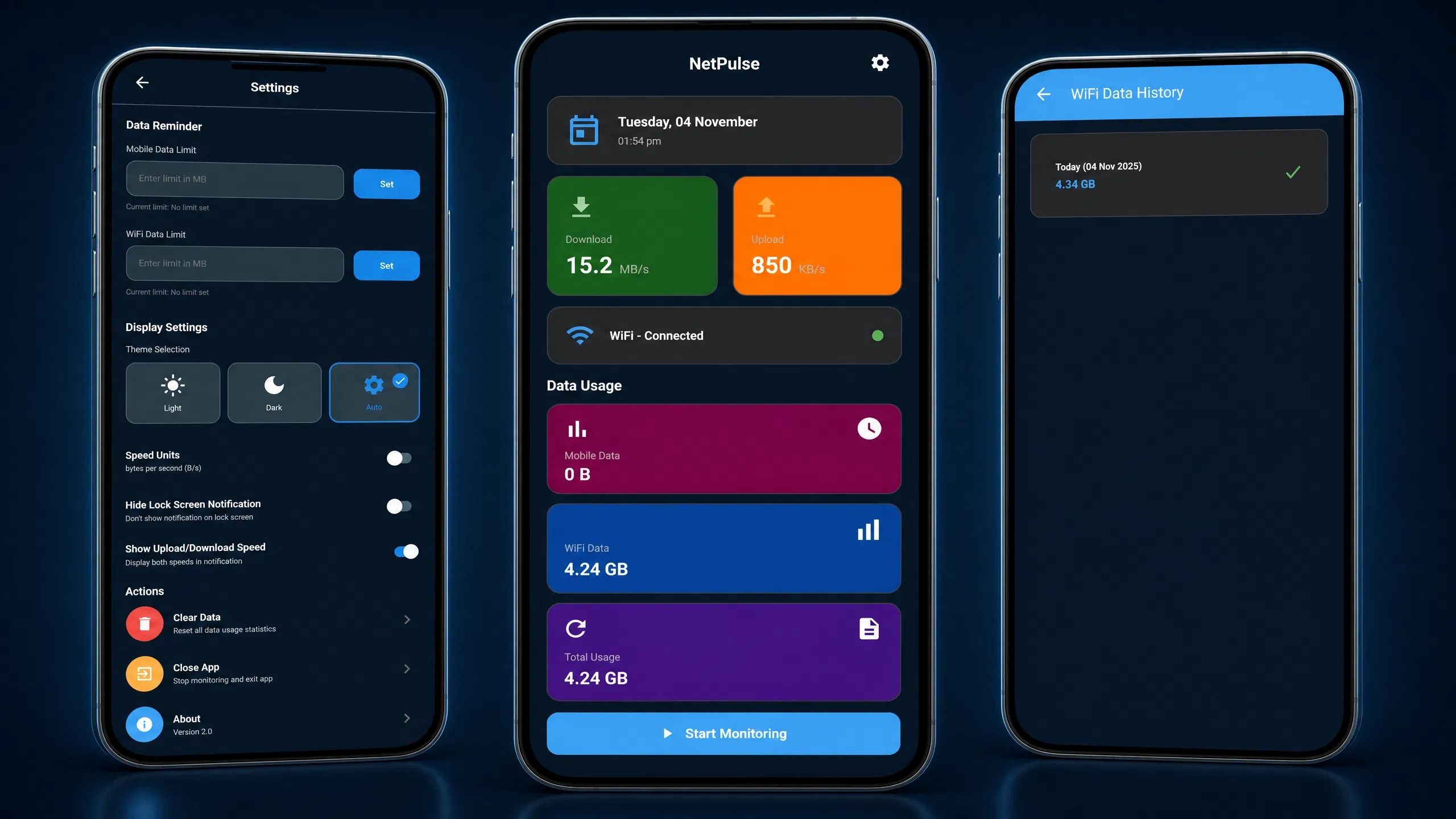
Keeping an eye on data usage and network speed matters when you're always connected. So I built NetPulse, an Android app that shows real-time internet speed and tracks daily data consumption.
Kotlin Android Coroutines Canvas API Material Design
Building it was a deep dive into Android background services, custom UI rendering and data persistence. Here's a look under the hood: how I built it, the hurdles I hit and how I got past them.
What NetPulse does
NetPulse is a utility app built with Kotlin, with a clean, modern interface for checking your network status. Its core features:
- Real-time status bar monitor: a dynamic notification icon that shows live download/upload speed right in the Android status bar.
- Data usage tracking: separate tracking for Mobile Data and WiFi, with a 60-day history log.
- Automated data management: daily auto-resets at midnight and customisable data limit alerts.
- Modern UI: a responsive, card-based interface with Light and Dark mode support.
How I built it
The architecture combines several modern Android practices to stay efficient and accurate.
Foreground service and TrafficStats
To monitor speed continuously without Android killing the process, I implemented a LifecycleService (SpeedMeterService.kt). It uses Android's TrafficStats API to measure bytes transferred over precise time intervals and turn them into accurate live speeds.
Kotlin Coroutines and Flows
A constant stream of updates is handled asynchronously with Kotlin Coroutines and Flows (networkRepository.observeNetworkSpeed()). The main UI thread is never blocked.
Data persistence
Historical data and user preferences are stored in SharedPreferences, wrapped in a custom DataPreferences class. It auto-saves data every 60 seconds and handles the daily and monthly reset logic.
Custom UI and theming
The UI uses XML layouts with Material Design components. A theme system (themes.xml and colors.xml) makes switching between the custom light and dark modes straightforward.
Challenges and how I solved them
A continuous monitoring app throws up its own edge cases. These were the four biggest.
1. The tiny status bar icon
The problem: the live speed text in the status bar is the most important feature of a speed meter. My first version drew the speed text into a bitmap, and Android scaled the icon down hard. The result was tiny, garbled, unreadable text.
The fix: static icons weren't an option, so I built a custom SpeedIconGenerator that draws the text with Android's Canvas API:
- Used the maximum allowable status bar dimensions (up to a 200x96 canvas).
- Drew with
Canvas.drawText()on a transparent background. - Sized text proportionally (52f for the main number, 32f for the unit).
- Added a strong drop shadow (
setShadowLayer) for legibility. - Wrote formatting logic that drops decimals for large numbers, e.g. "15M" instead of "15.2 MB/s".
2. Battery drain vs. real-time accuracy
The problem: calculating speed and updating a notification needs constant background work. Update too slowly and the app feels sluggish; update too fast and it drains the battery.
The fix: I separated the background calculation from the UI updates. A coroutine-based monitoring loop calculates data usage and checks limits, and the notification updates every 200 milliseconds (5 times a second) for a smooth, real-time feel.
The key piece was making the NotificationCompat.Builder update silently with .setOnlyAlertOnce(true), .setSound(null) and .setVibrate(null). That stops the system from triggering unnecessary hardware interrupts and saves battery.
setOnlyAlertOnce(true) plus null sound and vibration keeps frequent updates cheap.3. Accurate tracking across network switches
The problem: users switch between WiFi and Mobile data all the time. Tracking both without double-counting or losing data during a switch is tricky. Some background apps even ping mobile data while the phone is on WiFi.
The fix: a differential calculation model. The app stores initialMobileRx/Tx and previousMobileRx/Tx states and calculates the exact byte difference between ticks.
When the network type is WiFi, the app first subtracts any minor background mobile usage from total traffic. Only the remainder goes into the WiFi data pool, which keeps the two counts isolated and accurate.
4. Layout and theme build errors
The problem: during the UI overhaul I hit build failures from resource linking, specifically AAPT: error: 'baseline' is incompatible with attribute gravity, plus missing colour resources when switching to the dark theme.
The fix: a strict audit of the XML layouts and resource files.
- Replaced the deprecated baseline gravity attributes with
bottomin theLinearLayoutwrappers for the speed displays. - Built a strict colour palette mapping: every light mode colour in
values/colors.xmlhas a direct dark mode counterpart invalues-night/colors.xml. - Added a 300ms delayed
recreate()handler inSettingsActivityso theme switches happen instantly, without a jarring flash.
values/colors.xml needs a matching entry in values-night/colors.xml, or the dark theme fails on missing resources.Key takeaways
- A
LifecycleServicewithTrafficStatsgives reliable, continuous speed measurement. - Status bar text needs a custom
Canvas-drawn icon; a scaled bitmap becomes unreadable. - Silent notification updates let you refresh often without wasting battery.
- Differential byte counting keeps WiFi and Mobile usage separate across network switches.
Building NetPulse taught me a lot about Android's system-level APIs, especially overriding default notification behaviour to draw a custom status bar icon. The result is an optimised, battery-friendly utility that runs reliably in the background.