Building PyPass Manager: A Secure, Local Desktop Password Vault
How I built a secure local password manager in Python and CustomTkinter, and what v2.0 added: breach checks, a phishing guard and Shamir-based emergency access.
 Nilay Naha
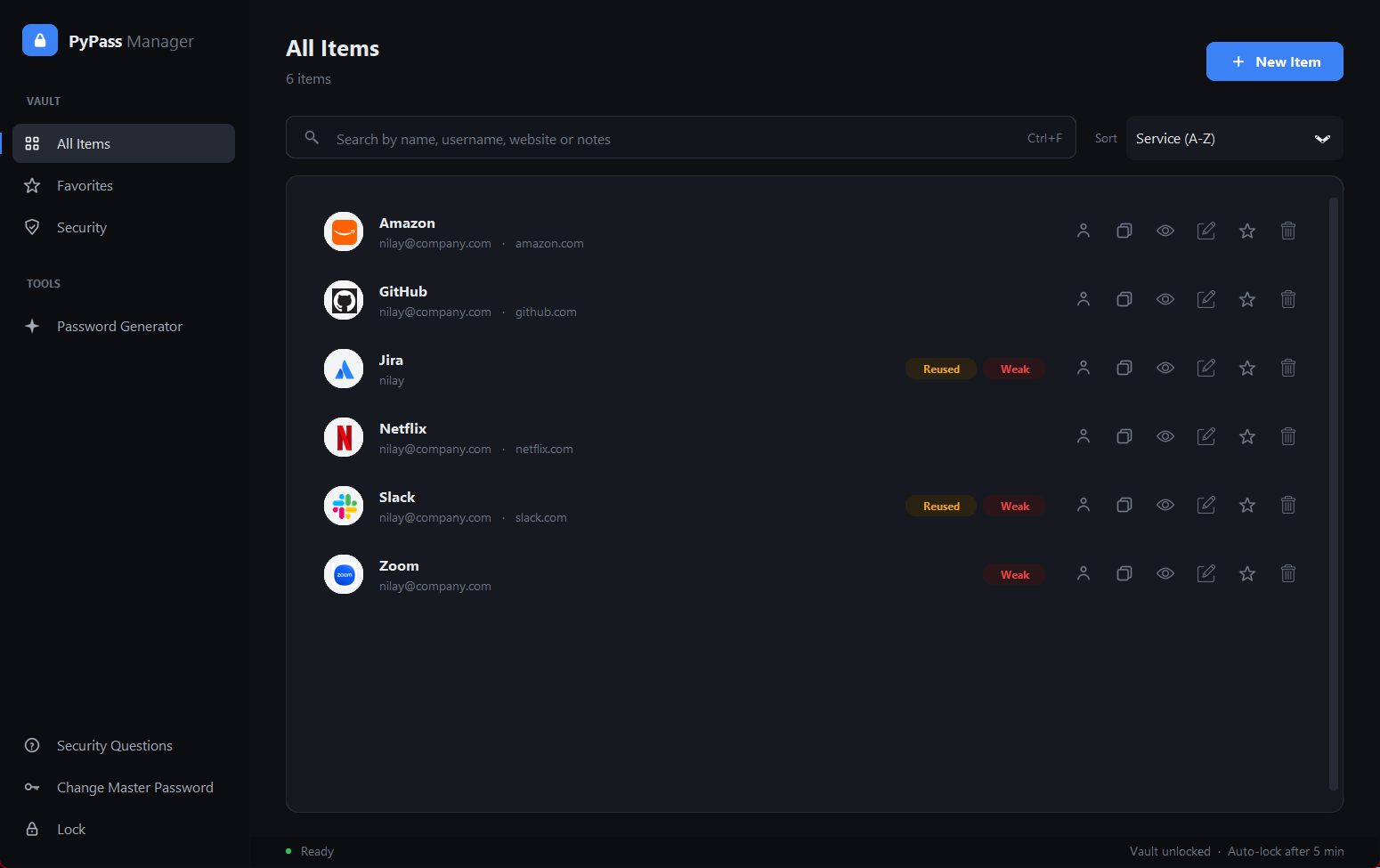
Password fatigue is real, and cloud-based managers raise their own privacy questions. So I built PyPass Manager: a secure, local desktop app in Python and CustomTkinter that keeps your credentials on your own hardware.
Python CustomTkinter Cryptography SQLite Desktop App
Encryption vs. hashing: two jobs, two tools
PyPass Manager's security rests on two different cryptographic ideas. Each one handles a different kind of secret.
| Concept | Implementation | Purpose |
|---|---|---|
| Encryption (two-way) | Fernet / AES-256 | Protects stored service passwords. I need to show the original password to a logged-in user, so it must be reversible with the correct key. |
| Hashing (one-way) | PBKDF2HMAC with SHA256 | Protects the Master Password. I only ever need to verify it, never read it back. I hash the input and compare hashes, so the app never sees or stores the real password. |
Why I use two separate salts
Salting blocks rainbow-table attacks and makes identical passwords produce completely different hashes. I went one step further and used two separate salts for two separate processes:
- Master Password salt: generated and stored just for the Master Password hash, so the stored hash is unique to that user.
- Encryption key salt: a different salt, used to derive the Fernet encryption key from the Master Password.
UI and data management
Standard Tkinter couldn't give me the modern look I wanted, so I chose CustomTkinter. It gave me easy light/dark theming, better high-DPI scaling and a polished UI, with less overhead than PyQt or Kivy.
Window management
- One hidden
ctk.CTk()root window runs the main event loop. - Every other window (Login, Main Dashboard, Add/Edit dialogs) is a
ctk.CTkToplevelinstance. - Modality is handled with
dialog.grab_set()anddialog.wait_window().
Data persistence
All credentials live in an SQLite database (passwords.db). SQLite is lightweight, serverless and self-contained. That makes it a natural fit for a local desktop app that shouldn't need any external database setup.
Live filtering and sorting
The credential list supports live search. I extended the get_all_credentials and search_credentials methods in database.py to accept sort_by and sort_order parameters. They build the SQL ORDER BY clause dynamically from the user's selection.
Clipboard security
When you copy a password, pyperclip clears the system clipboard after a configurable timeout (15 seconds by default). This minimises the risk of sensitive data lingering there.
Debugging the hard problems
Two issues took the most time to track down. Here's what went wrong and how I fixed each one.
1. "Too early to use font" and "grab failed"
The problem: interactions between CTkToplevel windows and the main event loop caused persistent UI initialisation errors. Dialogs appeared blank or crashed.
The fix: I suspected a timing issue with the underlying Tkinter context. Inside the CTkToplevel __init__ methods, I delayed widget drawing with self.after(1, self._create_widgets). That gave the window context time to fully set up before any font-dependent widgets were drawn.
I also wrapped dialog calls in strict grab_release() and grab_set() calls to stop system grab failures.
2. SyntaxErrors that looked correct
The problem: I kept hitting "expected except or finally block" errors in code that looked fine, plus "invalid command name" errors on top.
The fix: methodical isolation and plenty of print() statements showed that my own editing process was at fault. I was combining several Python statements with semicolons on one line inside try/except/finally blocks. Splitting them onto separate, properly indented lines fixed the whole cascade.
The "Forgot Master Password" trade-off
A recovery option forced a real choice between usability and security. Here's how it works:
- A user who forgets their Master Password answers pre-configured security questions. The answers are hashed and compared, just like the password.
- If they answer correctly, they can set a new Master Password.
- The encryption key was derived from the old Master Password. A new password produces a new key, so every previously stored credential becomes unreadable.
What's next: the V2 roadmap (as planned for v1)
- Auto-lock after inactivity: lock the app after a set period and ask for the Master Password again.
- Folders/categories: organise a growing list of credentials.
- Secure import/export: encrypted JSON export and import for safe backups and data migration.
- Password reuse check: a security audit that flags passwords reused across services.
Update: PyPass Manager v2.0 is out
On 28 October 2026 I shipped v2.0.0, a full rebuild of the app. Here's what changed since I wrote the sections above.
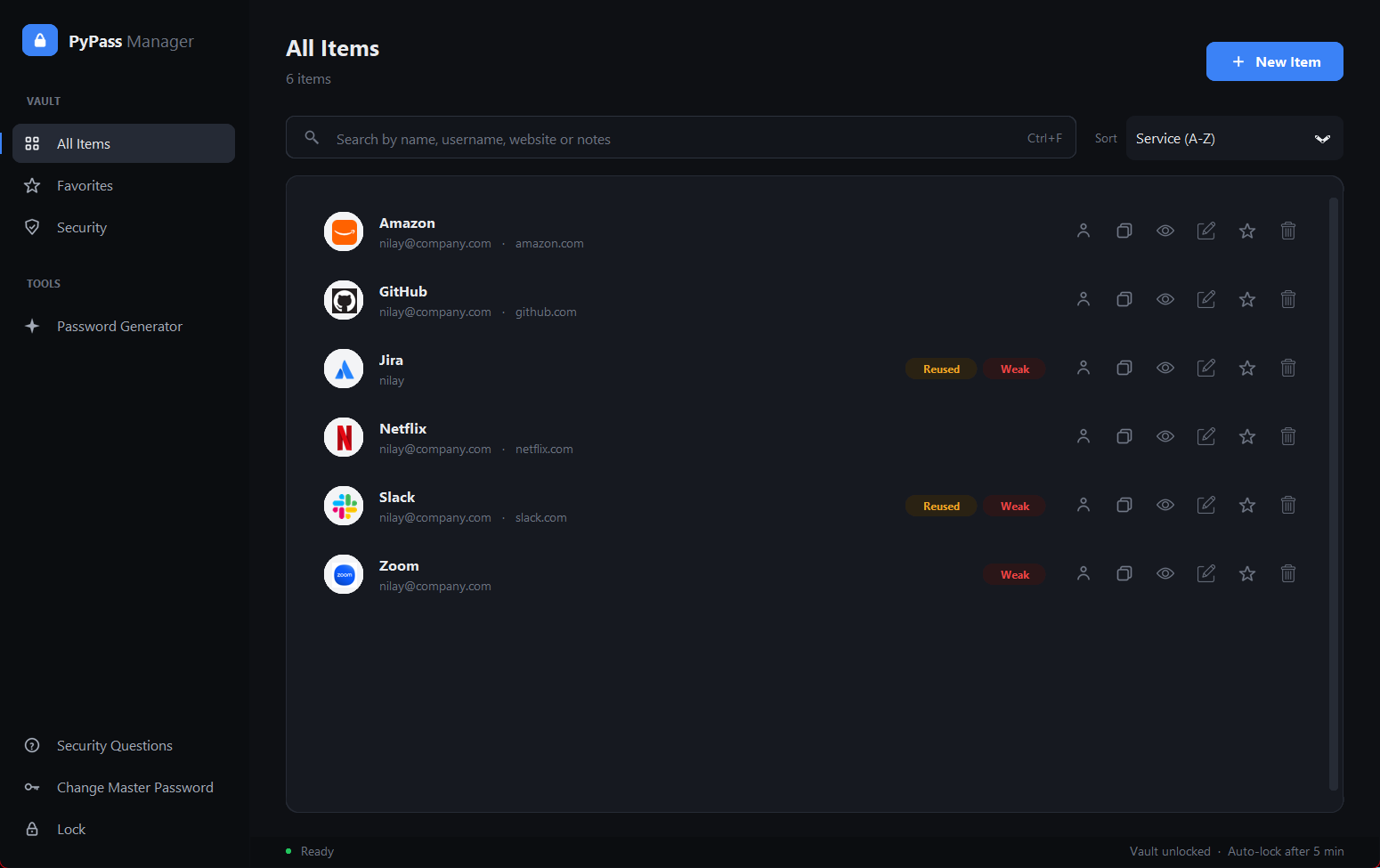
Fixing the "Forgot Master Password" trade-off
The biggest change is the one I flagged above as a real cost. In v1 the encryption key was derived directly from the Master Password, so a reset destroyed every saved credential. v2.0 uses a wrapped vault key instead:
master password ──PBKDF2──► key-encryption key ──unwraps──┐
security answers ─PBKDF2──► recovery key ─────unwraps──┤
K-of-N Shamir shares ──────► emergency key ───unwraps──┼──► vault key ──Fernet──► passwords & notes
One random vault key encrypts everything, and it's stored three times, each copy wrapped by a different route. Changing or recovering the Master Password now only re-wraps that key, so no data is lost. Existing v1 vaults are migrated automatically. Key derivation also went up to 480,000 PBKDF2-SHA256 iterations, and repeated wrong guesses now trigger a lockout that doubles from 30 seconds up to 15 minutes and survives restarts.
Three new security features
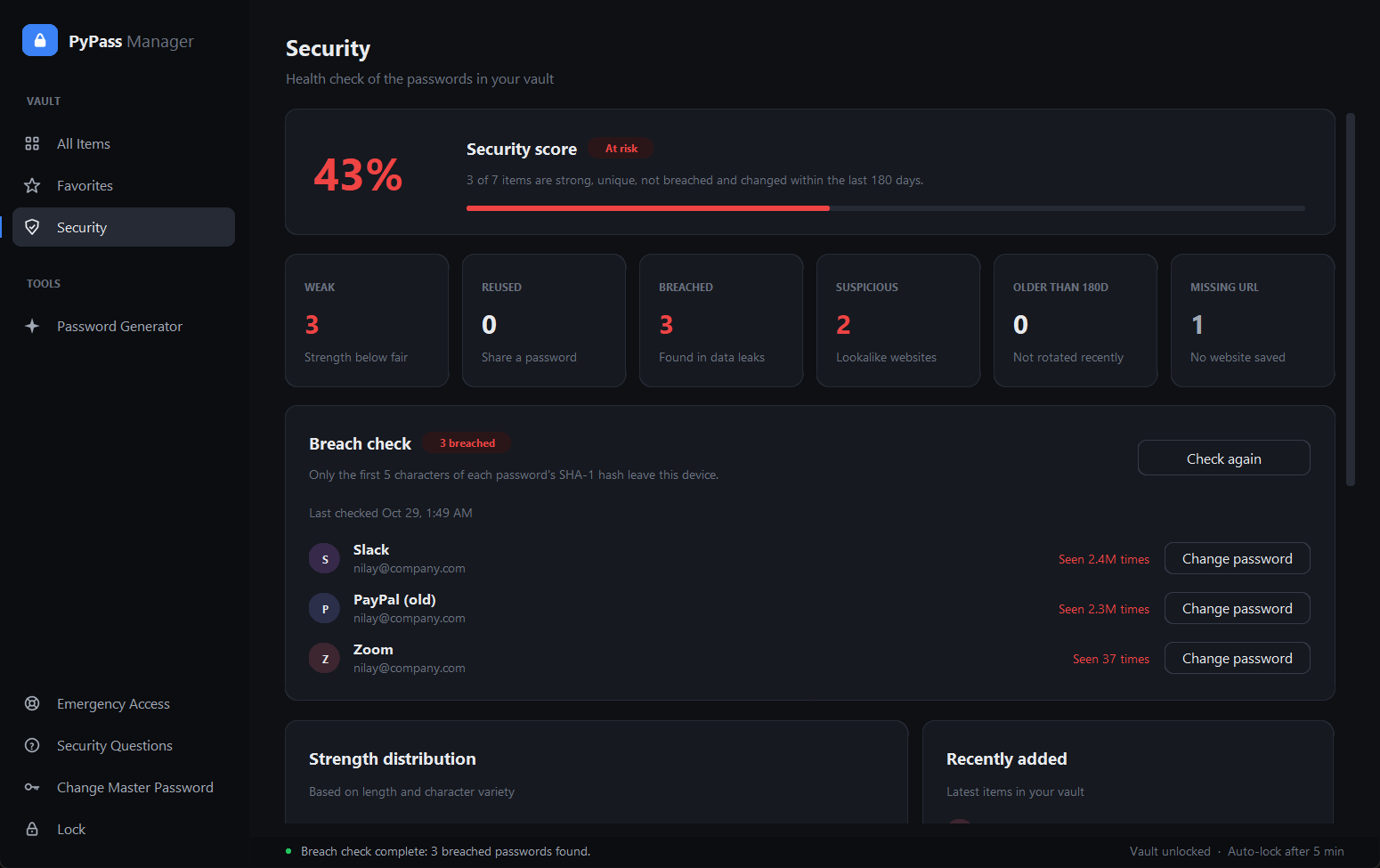
- Breach check: compares every password against 900 million+ leaked passwords via Have I Been Pwned's k-anonymity API. Only the first 5 characters of each SHA-1 hash leave the computer, and only when you click the button.
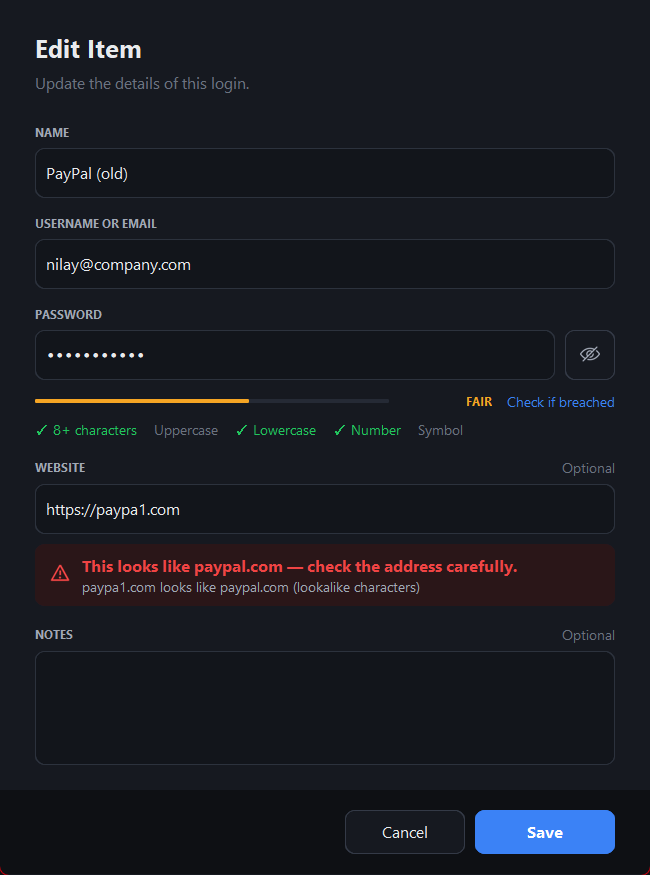
- Phishing lookalike guard: an offline detector for lookalike characters (
paypa1.com), Unicode homographs, typosquats, brand-in-subdomain tricks, combosquats and TLD swaps. - Emergency access: Shamir's Secret Sharing over GF(256). Pick, say, 3 of 5 trusted people; each gets a QR code and printable kit. Any 3 together can unlock the vault, and fewer than 3 learn nothing.
The roadmap, checked off
- Auto-lock after inactivity: locks after 5 minutes, hides the window and wipes the key and decrypted data from memory.
- Password reuse check: now part of a security dashboard that scores weak, reused, breached and old passwords.
- Secure import/export: still on the list, alongside TOTP codes, Argon2id and Windows Hello unlock.
Shipping it properly
v2.0 also brought a new Graphite design system, encrypted notes, website logos, a passphrase generator, 120+ pytest tests, and a GitHub Actions pipeline that builds a PyInstaller app and an Inno Setup installer and publishes the release whenever I push a version tag. The app also has its own website now.
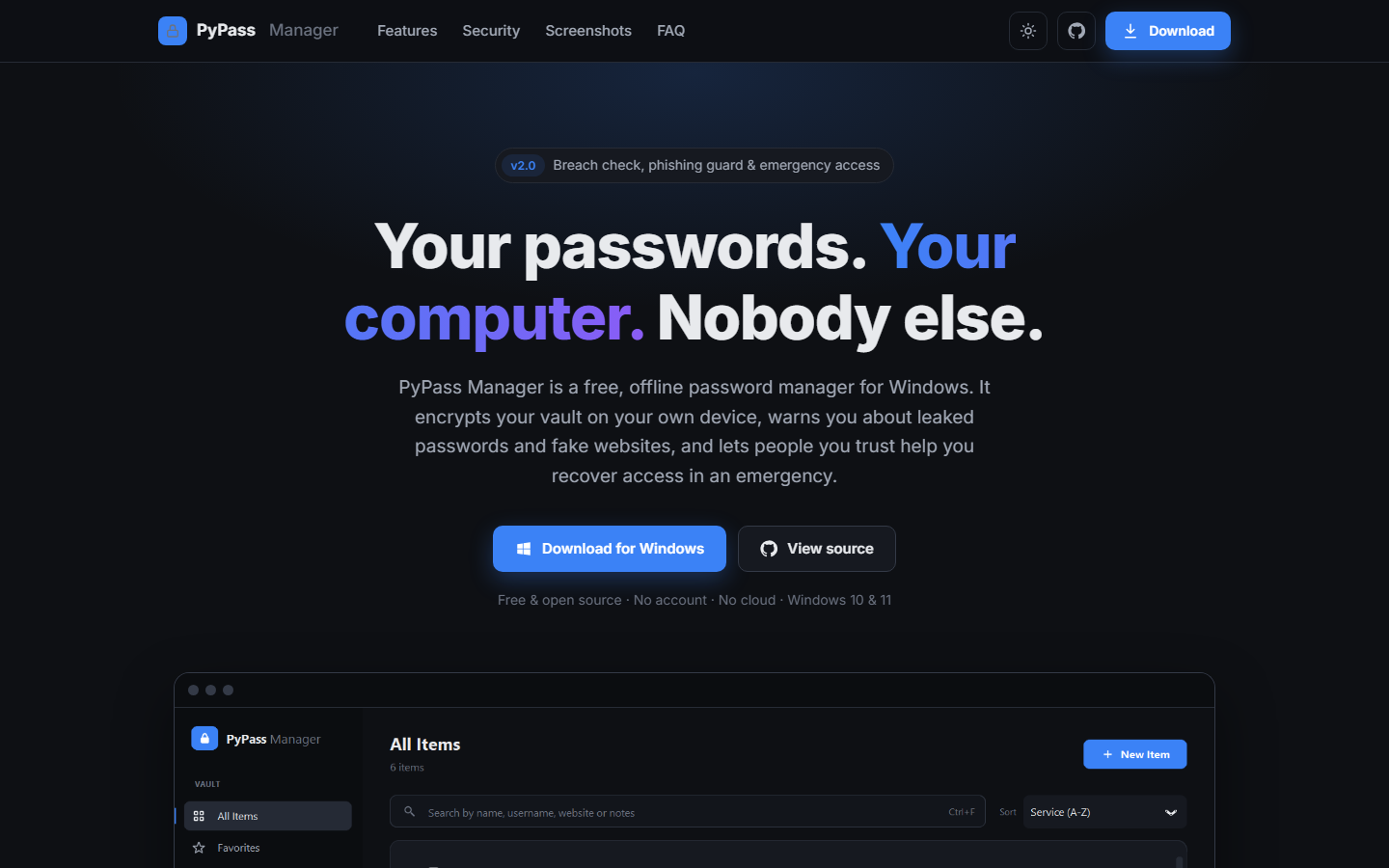
Download v2.0.0 for Windows → Visit the website →
Key takeaways
- Use encryption for secrets you must read back and hashing for secrets you only need to verify.
- Separate salts for password verification and key derivation keep the two processes independent.
- In Tkinter-based apps, many "random" UI errors are really timing problems. Deferring widget creation with
after()can fix them. - Password recovery in a local, key-derived vault always costs something. Be upfront with users about what they'll lose.
Building PyPass Manager taught me a great deal about putting cryptography into practice and taming complex UI event loops.